
Question

Script DDB partition move

  • June 16, 2025
  • 2 replies
  • 48 views

Forum|alt.badge.img+2

We have an effort to migrate DDB partition to another local volume on the MA for 200+ servers. Doing this via GUI 200 times will not be fun. I’ve looked but haven’t found a command that I can leverage to automate this task. Can’t imagine there being no cli command or qscript for this.

2 replies

Forum|alt.badge.img+8

Hi ​@Oje Alexis,

There isn't a built-in qscript available for bulk execution of DDB partition move. However, you can achieve this by following the steps below to generate a script template and then adapt it for bulk execution across your environment. Let me know if this works for your needs.

1. Generate the Move Partition Script via GUI
First, create a template script using the GUI for one DDB partition referring to the doc on Moving a Deduplication Database to Another Location

1. Navigate to Storage Resources > Deduplication Engines > [storage_policy_copy] in the CommCell Console.
2. Right-click on the DDB partition you wish to move and select All Tasks > Move Partitions.
3. In the Move Partition dialog, configure the target MediaAgent and partition path.
4. Check the Change Config only option if you only want to update the configuration in the CommServe database without moving the actual data.
5. Click OK, and then in the confirmation dialog, click Save As Script.documentation.commvault.com
6. Save the generated XML script to a known location.

2. Modify the Script for Bulk Execution
Using the XML template generated above, create a new script for each DDB partition you wish to move:
1. Open the saved XML script in a text editor.
2. Modify the <StoragePolicyCopy> and <PartitionPath> elements to reflect the correct DDB partition details for each MediaAgent.
3. Ensure that the <TargetMediaAgent> and <TargetPartitionPath> elements point to the correct destination MediaAgent and partition path.
4. Save each modified script with a unique name corresponding to the DDB partition it represents.

3. Execute the Scripts via Command Line

For each modified XML script, execute the move operation using the qoperation execute command: qoperation execute -af "C:\path\to\your\script.xml"

Replace "C:\path\to\your\script.xml" with the actual path to your modified XML script.

This command will initiate the move operation for the specified DDB partition

Regards,

Dheeraj


Forum|alt.badge.img+2
  • Author
  • Byte
  • June 18, 2025

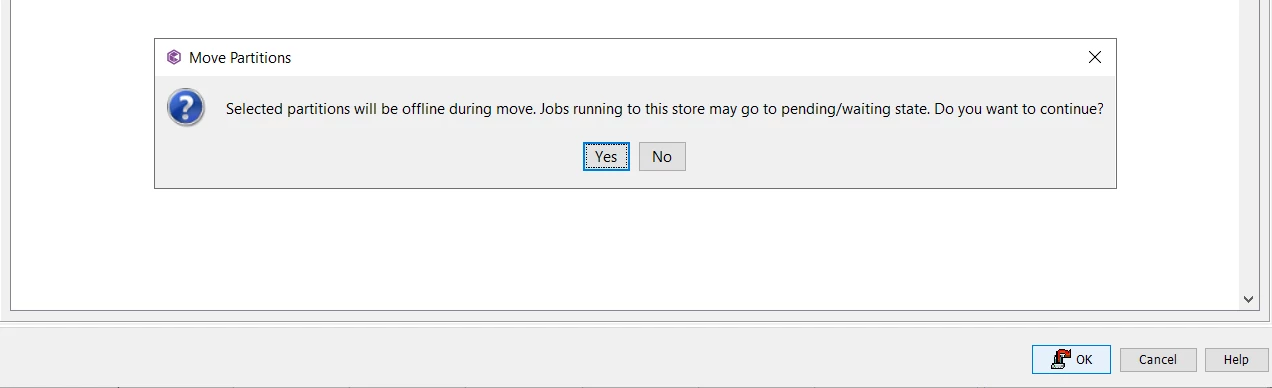
Thank you so much for the reply! I did look for the “Save As Script” option before on the dialog but this is what I see:

When I click OK I get that dialog. Don’t have the option to do “Save As”. Unless I am missing something.